
🚀 Technical Requirements
We kindly ask that you review the document before your first day so you can prepare your PC or laptop by completing the required downloads and updates (outlined in the first steps of the guide). This ensures that once your login details are issued, you can test your access ahead of the training session. Logins and further instructions will be sent separately in the days leading up to training.
At Ventrica, the option to work from home may be available depending on the terms of your employment agreement. If you are using your own device, please note that only Windows Defender (for Windows devices) and X‑Protect (built into macOS) are supported as antivirus solutions. No other antivirus software can be used or supported.
Windows
- Windows 11 24H2
- 8th Generation (or later) Intel i-Series processor or 3rd Gen (or later) AMD Ryzen processor
- 16GB RAM minimum
- 15GB+ free storage space
Apple / macOS
- macOS 14 (Sonoma) or later
- 8GB RAM minimum
- 15GB+ free storage space
🚀 Quick Start Guide
Getting Connected for the first time
This quick start guide provides everything you need to begin working from home efficiently and securely. Please review the information below before starting the setup process to ensure a smooth onboarding experience.
To get your device ready for work, you’ll need to download and install several required applications. Use the links provided to access the correct installers for your operating system. These applications ensure your device is secure, compliant, and fully integrated with Ventrica’s systems.
Your Ventrica username
Your Ventrica username will be provided to you by HR during your onboarding process. It follows the format: firstname.lastname@ventrica.co.uk – This is your unique identifier required for signing in to all Ventrica systems, applications, and services. Keep this information secure and do not share it with others.
A reliable UK internet connection
A stable and consistent internet connection is essential for conducting video calls, attending virtual meetings, and accessing company systems without interruption or delays. We recommend a minimum download speed of 20 Mbps and upload speed of 5 Mbps for optimal performance.
Administrator permissions on your device
You will need administrator-level access to your computer to install necessary software, run security scans, and register your device with Ventrica's management platform. This ensures your device meets security compliance requirements before accessing company resources.
Logging In From Abroad
You are only permitted to log in from the UK and must not attempt to use a VPN to mask your location - Connection attempts from an unauthorized location reported to line managers.
VPN Software
Connecting to Ventrica systems with an active VPN will be blocked - VPN connections are not permitted, as they may interfere with security and system performance.
Anti-Virus
Windows Defender as your only antivirus – to ensure compatibility with Ventrica's security requirements, please ensure no third‑party antivirus software is installed. Windows Defender provides full protection and works seamlessly with Ventrica's device policies.
Create a Ventrica User Profile
Step 1 - Ventrica Profile
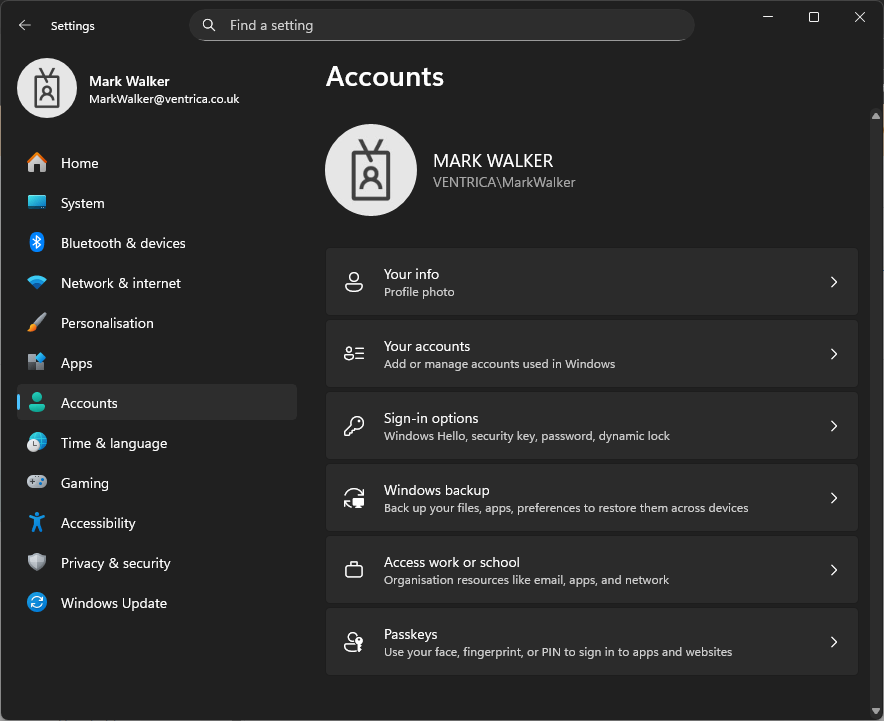
To keep your work and personal files separate, you must create a new local user profile called Ventrica. Start by searching for "Other Users" in the Windows search bar and selecting the System Settings option.
On the settings page that opens, select Add account.
- Select "I don't have this person's sign-in information" at the bottom.
- On the next screen, choose "Add a user without a Microsoft account".
- Create a local account named Ventrica, assign a secure password, and complete the security questions. Then click Next.
- Once created, the new account will appear in the list. Select Change account type.
- Set the account type to Administrator (this will be changed back later).
- Sign out of your current profile and sign in to the new Ventrica account.
Install Required Apps
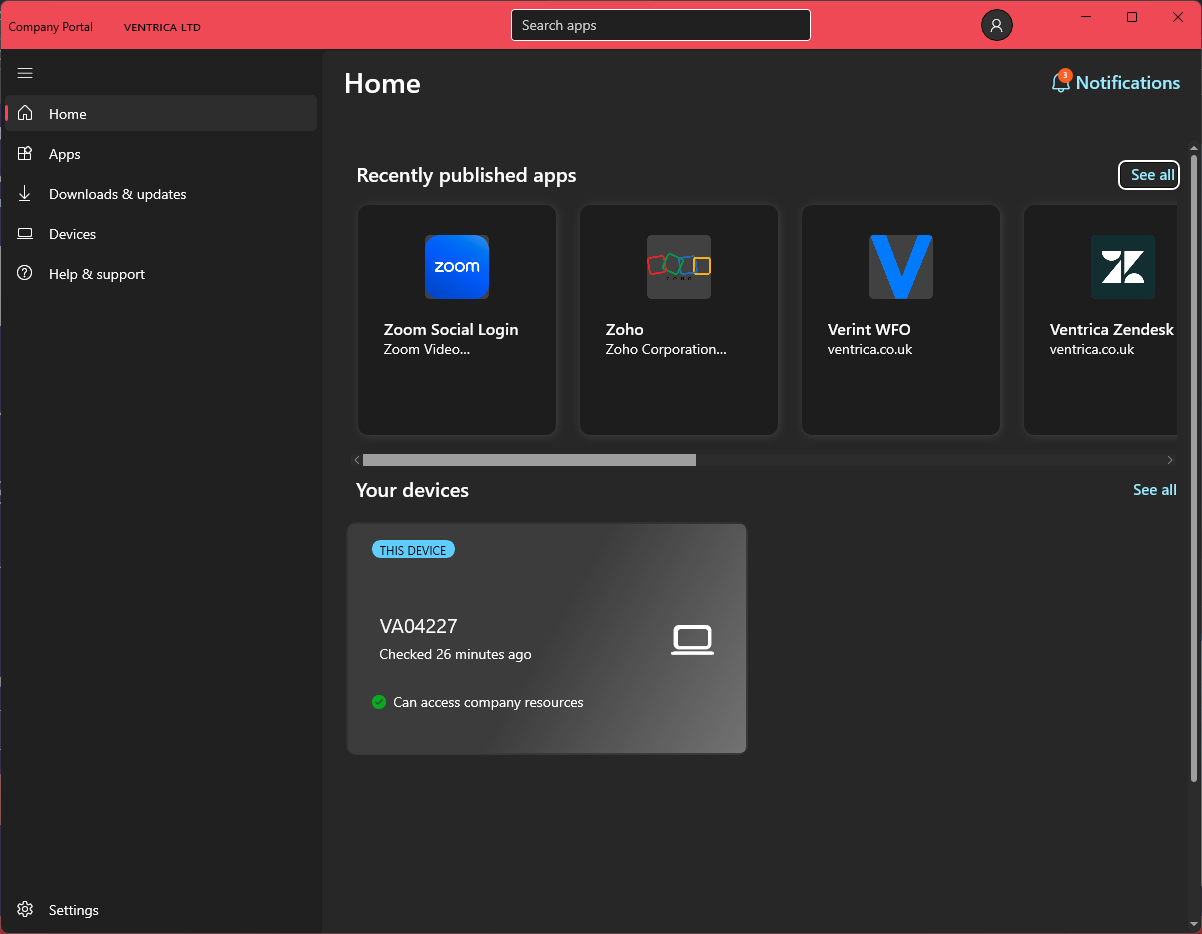
Install Company Portal on your Computer
To ensure your device meets your organisation's security and management requirements, you will need to install the Microsoft Company Portal application. This app allows your IT team to keep your device compliant and provide access to work resources. Use the links below to download and install the Company Portal application
Company Portal Windows
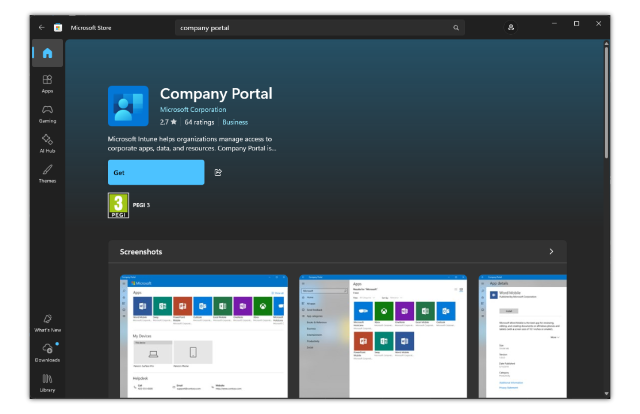
Use the QR code or click on the Mac App Store link below
Download Company Portal
Company Portal MacOS
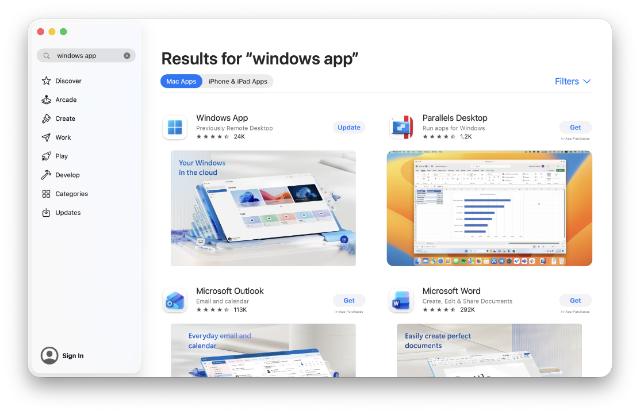
Use the QR code or click on the Mac App Store link below
Download Company Portal
Install Authenticator on your Mobile Device
To begin securing your account, you will need to install the Microsoft Authenticator app on your smartphone. This app is required to complete multi-factor authentication (MFA), which adds an extra layer of protection to your login. Use the links below to download the necessary app for your device:
Microsoft Authenticator (Android)
Microsoft Authenticator (iPhone)
Company Portal
Launch Company Portal
While signed into your new Ventrica local user profile, open the Company Portal app and sign in using your Ventrica username in the following format FirstnameLastname@ventrica.co.uk (no full stop between names)
First-Time Sign-In Steps
- You will be prompted to secure your account—select Next.
- Continue through the prompts for Microsoft Authenticator.
- A 2‑digit verification code will appear on your computer. Enter this code into the mobile app.
- You may be shown a second 2‑digit code—enter that as well.
-
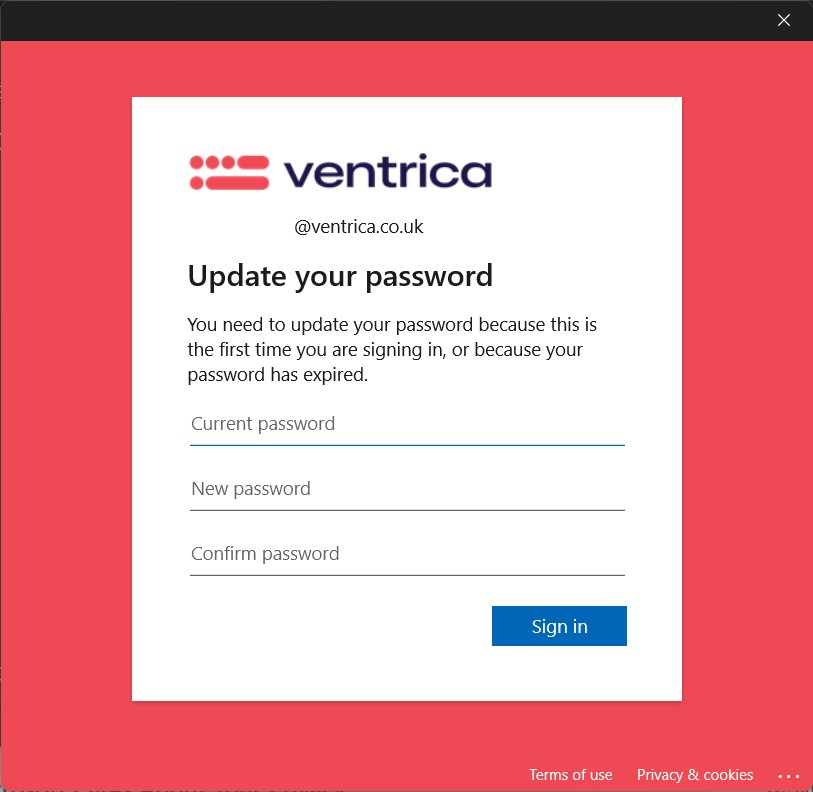
If this is your first login, you will be required to create a new password.
Password Requirements: Minimum 8 characters, including a capital letter and special character. - Choose Yes, all apps when prompted to allow device management.
Device Compliance
Once enrolled, the Company Portal will verify your device compliance. This may take several minutes. Ensure your device meets all security requirements as outlined by Ventrica IT policies.
Set Account to Standard
After installing and enrolling Company Portal:
- Sign out of the Ventrica profile.
- Sign back into your personal user account.
- Search for "Other Users" again and open the settings page.
- Select the Ventrica account and choose Change account type.
- Set the account back to Standard User.
You may now sign back into the Ventrica account and begin working.
Remote Desktop (Windows App)
Windows App (Remote Desktop) access is provided through the Microsoft Windows App (Remote Desktop) app, available for both Windows and macOS devices. Follow the appropriate guide below to complete setup.
Use the steps below to connect to your Ventrica remote desktop for the first time. Choose the guide for your operating system (Windows or macOS), then complete the sign-in steps (applies to both).
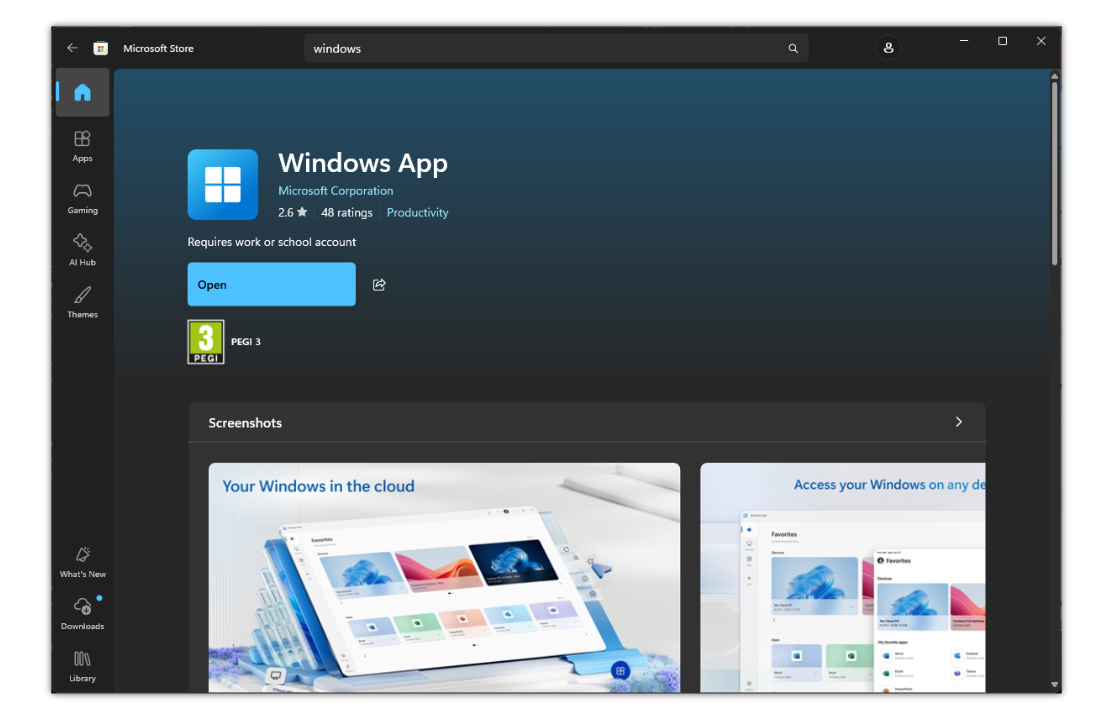
Windows Users
- Open the Start menu, type Remote Desktop, and launch it.
- When the Remote Desktop app opens, click Subscribe.
Mac Users
- Open the Windows App you installed (from the Applications folder). When prompted, allow sound and microphone access.
- Click the + button, then choose Add workspace.
-
When asked for a workspace URL address, enter your username in the format:
FirstnameLastname@ventrica.co.uk
Then click Add.
Sign in (Both Windows & Mac)
- When prompted, enter your username as provided (usually FirstnameLastname@ventrica.co.uk – no full stop between names), click Next, then enter the password that was sent to you.
-
Approve the sign-in request:
- You’ll be shown a random 2-digit number.
- Type this number into the Authenticator app and tap Yes.
-
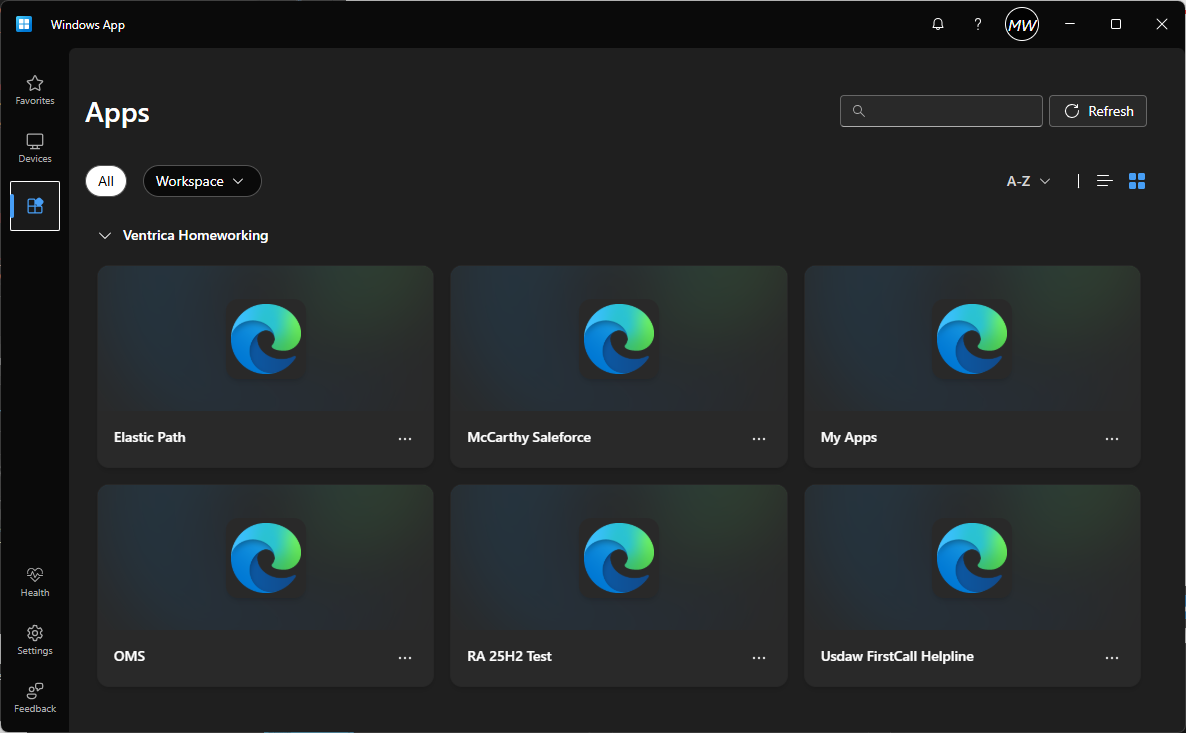
After authentication, you will see an icon for your remote computer pool or
remote app (depending on your campaign).
Note: If your campaign doesn’t require Remote Desktop, you won’t see any resources. -
Click the icon to connect. When prompted again, enter:
- Ventrica username only (no domain)
- Your new password
Duo Mobile App Registration
Download and register the Duo Mobile app to receive your two‑factor authentication (2FA) prompts directly on your phone instead of by SMS or phone call. Follow the links below to install the correct version for your device, then complete the setup using the Duo Mobile guide.
iOS (iPhone / iPad)
Android Devices
Please make sure you follow all steps in the official Duo Mobile setup guide to complete your enrolment successfully.
If you run into any issues, contact the IT Helpdesk or raise a support ticket by emailing support@ventrica.co.uk from your Ventrica email address. The team will help you complete your setup.
Password Reset Guidance
Keeping your Ventrica account secure is essential, and resetting your password is sometimes required when prompted by the system, when your password expires, or if you simply wish to update it for security purposes. The steps you need to follow depend on the type of device you’re using and the way your account is set up.
Select the instructions that apply to your situation below. Whether you are using a Windows device, a Mac, or you are part of Support Staff, VPN users, or SA user groups, you’ll find clear guidance to help you complete your password reset quickly and securely.
Windows Users
- Open the Company Portal app.
- Select your profile from the app.
- Choose Change Password and follow the on-screen instructions.
- Complete the password reset on the page provided.
Mac Users
- Open the Company Portal app on your Mac.
- Go to My Profile.
- Select Change Password and follow the steps.
- Submit your new password to complete the reset.
Support Staff, VPN Users & SA Users
- Go to the Azure password reset page:
- https://account.activedirectory.windowsazure.com/ChangePassword.aspx
- Sign in using your Ventrica email (e.g. FirstnameLastname@ventrica.co.uk).
- Do not click “Forgotten my password”.
- Enter your current password, choose a new password, and confirm it.
Troubleshooting
Headset & Audio Troubleshooting
Follow the steps below if you're experiencing sound or microphone issues while working in Remote Desktop.
1. Test Sound Inside and Outside Remote Desktop
- Play a YouTube video inside Remote Desktop to check audio.
- Sign out fully from Windows App (Remote Desktop) and repeat the test on your local desktop.
- This helps determine whether the issue is Remote Desktop–related or device–related.
2. Check Sound Settings (Windows)
Open sound settings:
- Right‑click the speaker icon next to the clock → Open Sound Settings
Sound output issues:
- Ensure your headset is selected under Output.
- If not listed, unplug and reconnect it.
- If still missing, restart your computer and reconnect the headset.
Microphone issues:
- Check the Input section and speak into your mic.
- The input level bar should move when your voice is detected.
- If not, unplug → restart → reconnect your headset.
3. Check Sound Settings (Mac)
Open sound settings:
- Apple Menu → System Preferences → Sound
Sound output issues:
- Open the Output tab and select your headset.
- If not listed, unplug the headset, restart your Mac, then reconnect it.
Microphone issues:
- Open the Input tab and select your headset.
- Speak into the mic — the input level bar should move.
- If not, unplug → restart → reconnect your headset.
4. Perform a Teams Test Call
In Microsoft Teams, type /testcall into the search bar and follow the prompts to test your speaker, microphone, and call quality.
5. Still Having Problems?
If audio issues continue, please review the Internet Connection Speed & Quality section, as network instability can also impact audio performance.
Internet Connection Speed & Quality
A slow or unstable internet connection can cause several issues when working from home, such as:
- Windows App (Remote Desktop) disconnections
- Delays when clicking, typing, or switching screens
- Broken, delayed, or distorted audio
To check your connection quality, run a speed test at fast.com from your home computer (not inside Windows App (Remote Desktop)). Click “Show more info” to view your full results.
For a smooth Windows App (Remote Desktop) experience, you should have:
- 20 Mbps or higher download speed
- 5 Mbps or higher upload speed
- < 20ms loaded latency
If your connection does not meet these requirements, try the following:
- Use a wired Ethernet connection — WiFi can suffer interference
- Ensure others are not heavily using your internet
- Restart your router and your computer
- Contact your Internet Service Provider (ISP)
Windows App (Remote Desktop) – Not Connecting
First, restart your computer and try again.
If the issue persists, refresh your Windows App (Remote Desktop) workspace feed:
Windows: Click the three dots
(…) next to Ventrica Homeworking → Refresh
Mac: Click the Cog
icon
→ Refresh All Workspaces
If refreshing does not resolve the issue, unsubscribe and re‑subscribe:
Windows: Three dots
(…) → Unsubscribe
Mac: Select workspace → Trash
icon
After unsubscribing, re‑add the workspace using the instructions in the Homeworking Instructions .
If issues continue, please review the Internet Connection Speed & Quality section above.
Complete Homeworking Setup Guides
A step-by-step homeworking video guide is also available for Windows users:
Homeworking Video Guide
WINDOWS USERS ONLY
Windows Users
Follow the full Windows App (Remote Desktop) setup instructions in the Windows
homeworking guide:
Homeworking Instructions (Windows)
Mac Users
Follow the macOS homeworking guide for Windows App (Remote Desktop) setup:
Homeworking Instructions (Mac)